
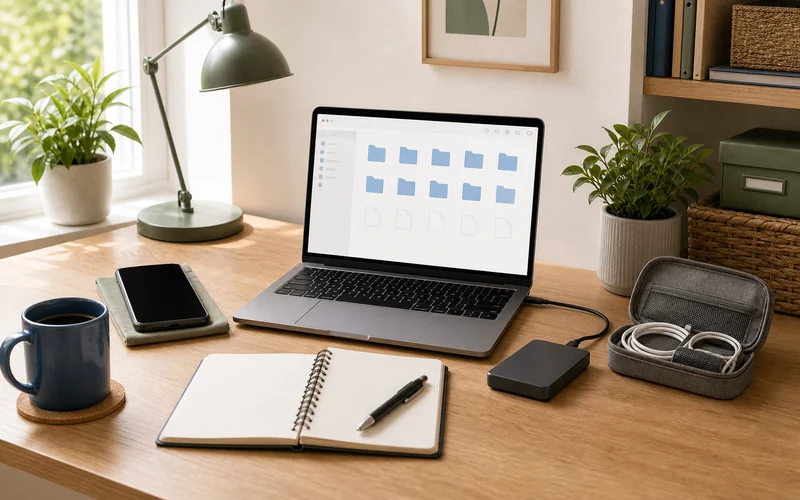
A digital declutter is the tech version of clearing a crowded countertop. It removes the little annoyances that slow you down: full phone storage, mystery downloads, duplicate photos, messy desktop folders, old screenshots, and cloud files you cannot find when you need them.
The best part is that you do not need a full weekend or a complicated system. A focused digital declutter checklist can make your phone, laptop, and cloud storage easier to use in about an hour. Start with the places you touch every day, then set a small weekly reset so the clutter does not quietly rebuild.
Start With a Quick Digital Inventory
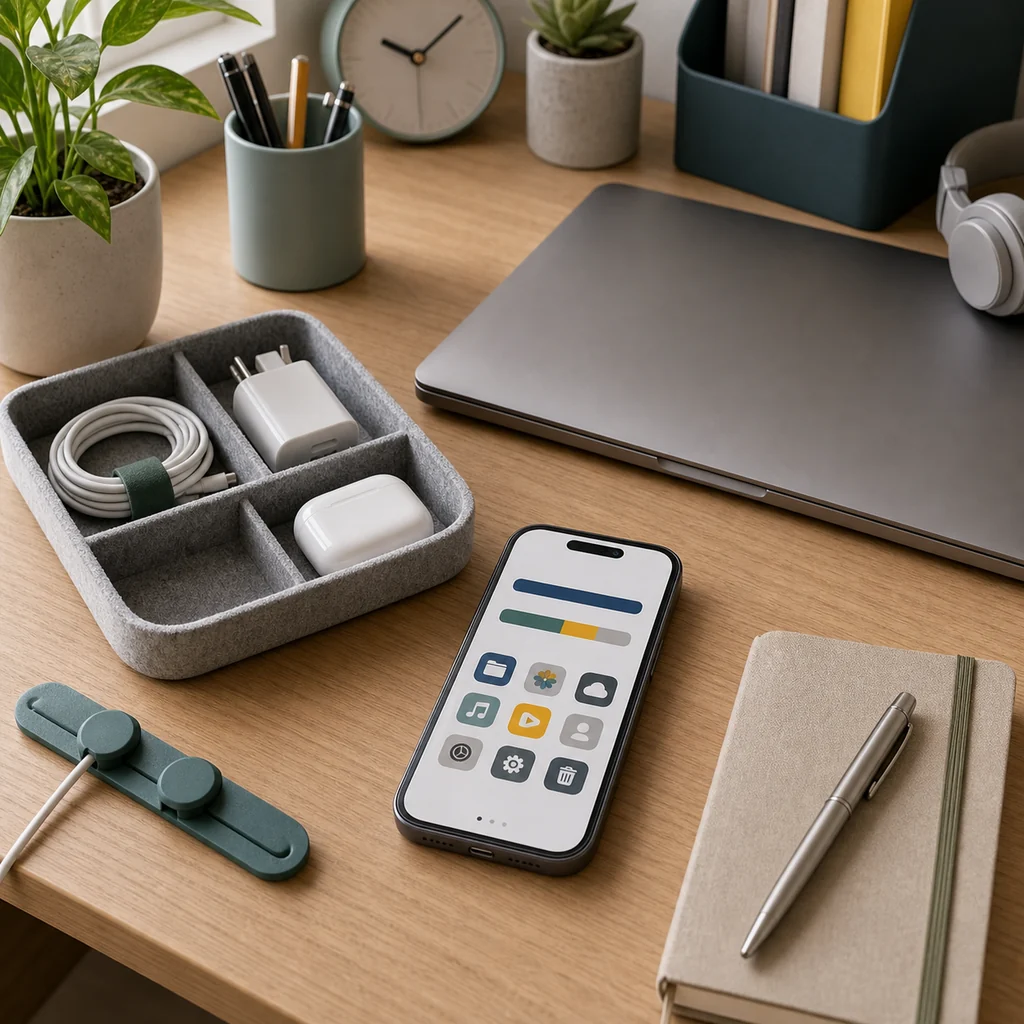
Before deleting anything, look at where your clutter actually lives. Most people have one or two main trouble spots: photos, downloads, email attachments, desktop files, app storage, or cloud folders. Naming the problem first keeps the cleanup focused.
Check These Places First
- Phone storage: Photos, videos, old messages, offline files, and unused apps.
- Laptop desktop: Screenshots, temporary files, unnamed documents, and old exports.
- Downloads folder: PDFs, installer files, receipts, and duplicate attachments.
- Cloud storage: Shared files, old folders, duplicate backups, and unsorted uploads.
- Email inbox: Attachments, newsletters, receipts, and account notices you no longer need.
If physical clutter is also slowing your desk down, pair this tech reset with 7 Easy Tips to Declutter Your Home so your workspace and devices feel easier to use together.
Clean Up Your Phone Storage First
Your phone is usually the quickest win because it gathers clutter every day. Start with storage settings to see what takes the most space, then work from largest items to smallest. This prevents you from spending twenty minutes deleting tiny files while videos still take up most of the storage.
Phone Cleanup Checklist
- Delete blurry photos, accidental screenshots, and duplicate images.
- Move important photos to your preferred backup location before deleting local copies.
- Remove downloaded podcasts, videos, maps, and offline files you no longer need.
- Delete apps you have not used in months.
- Clear large message attachments if your messaging app takes a lot of space.
- Review notes and voice memos for old temporary items.
Keep the goal simple: free up space and make the phone easier to search. You do not have to make every album perfect in one sitting.
Give Your Laptop Files a Simple Home
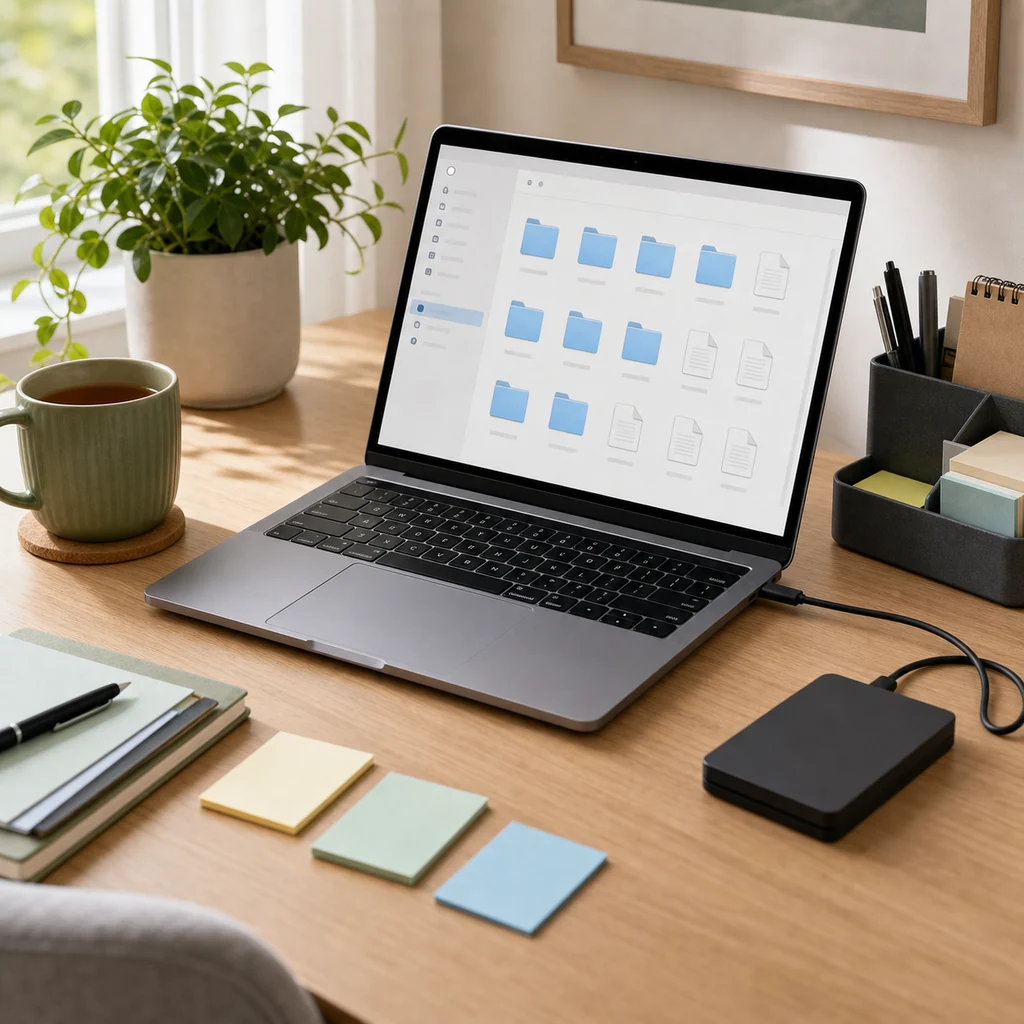
A messy laptop often comes from not having obvious places for new files. Instead of building a giant folder maze, use a few broad folders that match how you search for things later.
A Simple Folder Structure
- Admin: Receipts, forms, account documents, and household records.
- Projects: Active work, school, site, or personal projects.
- Photos: Edited images, exports, and albums you want to keep.
- Reference: Guides, manuals, saved ideas, and documents you may need later.
- Archive: Finished items that should stay saved but do not need to be visible every day.
Move files from the desktop and downloads folder into these homes. If you are unsure about a file, place it in a temporary review folder and set a reminder to check it later.
Clear the Downloads Folder
The downloads folder is usually digital storage’s junk drawer. It fills with files that were useful for five minutes and then forgotten. A clean downloads folder also makes new downloads easier to spot.
What to Delete or Move
- Old installers and setup files.
- Duplicate PDFs and repeated exports.
- Images saved only for a quick task.
- Receipts that should move to an admin folder.
- Documents with unclear names that need quick renaming.
Sort by size first if storage is tight. Sort by date first if you want to remove old temporary files quickly.
Review Cloud Storage Without Panic
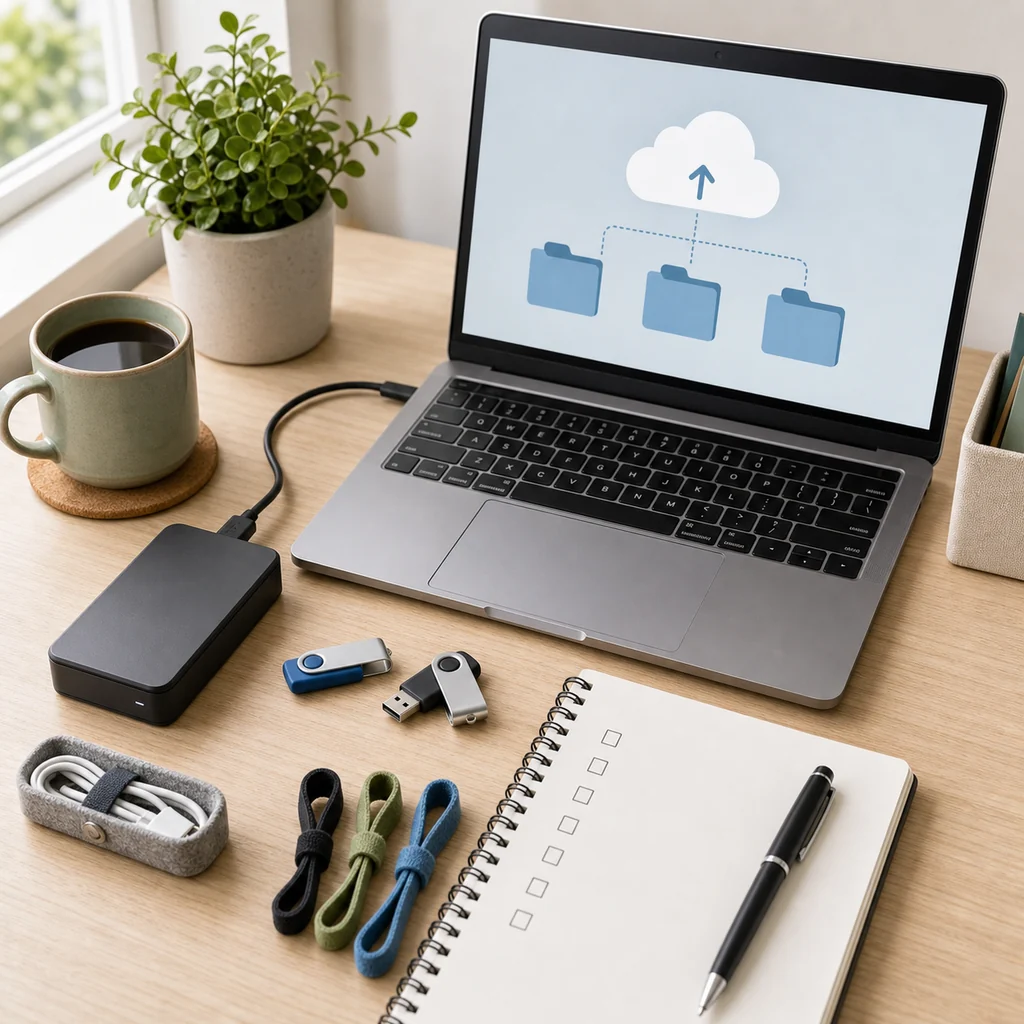
Cloud storage can feel invisible until it is suddenly full. The safest approach is to review, rename, and backup before deleting. Keep important family, school, business, or personal records in more than one trusted place.
Cloud Cleanup Checklist
- Find your largest folders and check what actually needs to stay.
- Remove duplicate uploads after confirming the best copy is saved.
- Rename vague folders so they make sense later.
- Review shared folders and remove access you no longer need.
- Download or backup important files before deleting anything permanent.
- Keep a small archive folder for records you rarely open but should not lose.
For tech tools that genuinely save time, you may also like Top AI Tools That Save You Hours, but keep your storage system simple enough to maintain without another app.
Delete Apps and Accounts Carefully
Unused apps can take storage, send notifications, and keep old account permissions active. Removing them is a fast way to make your phone and laptop feel quieter.
Safe App Review Questions
- Have I used this app in the last three months?
- Does it store photos, notes, or files I need to export first?
- Is it connected to any account, subscription, or device?
- Can I access the same service through a browser when needed?
- Does it send notifications that distract me?
Delete what is clearly unnecessary. For anything connected to billing, storage, or important records, check the account first before removing the app.
Back Up Before You Delete Big Things
Decluttering should make your digital life calmer, not risky. Before deleting large folders, videos, photo albums, or old records, confirm that your important files exist somewhere reliable.
Simple Backup Rule
Keep important files in at least two places: one main location and one backup. That might mean cloud storage plus an external drive, or a computer plus a secure cloud folder. The right setup depends on what you use, but the habit matters more than the tool.
If you use connected devices at home, the practical mindset in Top 5 Smart Home Gadgets to Upgrade Your Living Space pairs well with a tidy backup routine.
Set a Weekly Digital Reset
A digital declutter works best when it becomes a small routine. Ten minutes once a week is enough for most people to stop clutter from building again.
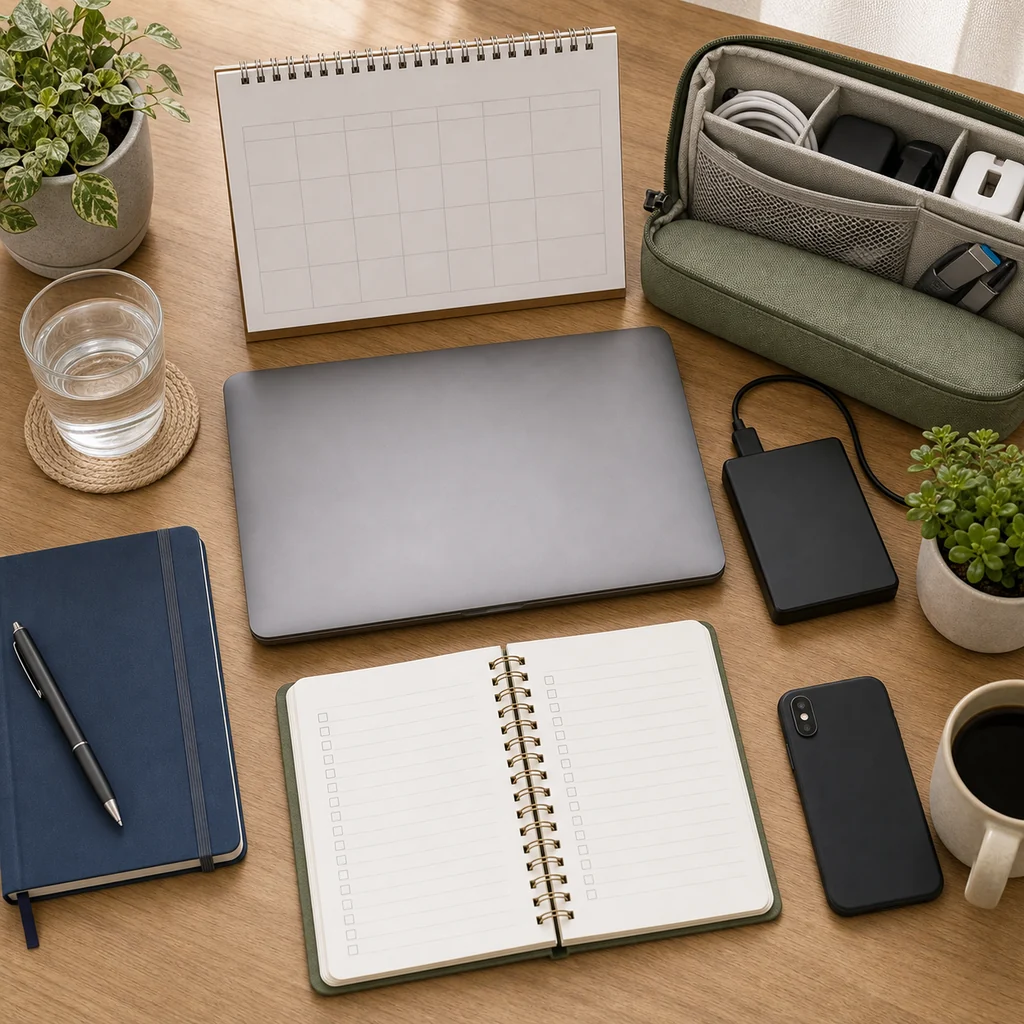
Weekly Reset Checklist
- Delete new screenshots you do not need.
- Clear the downloads folder.
- Move important files into the right folder.
- Empty trash only after checking it.
- Review cloud uploads from the week.
- Update backups for important new files.
- Turn off one notification that is not useful.
The goal is a steady rhythm, not perfection. If the system takes too much effort, simplify it until you can keep it going.
Digital Declutter Mistakes to Avoid
- Deleting first, checking later: Backup important files before removing large folders.
- Making too many folders: A system with twenty tiny categories is hard to maintain.
- Ignoring downloads: This folder often holds the easiest storage wins.
- Trusting memory: Rename vague files before you forget what they are.
- Trying to finish everything at once: Work by device or folder so you do not burn out.
Quick Digital Declutter Checklist
- Check phone and laptop storage settings.
- Delete duplicate photos, screenshots, and old downloads.
- Move important files into broad folders.
- Rename vague documents and folders.
- Review cloud storage and shared folders.
- Remove unused apps after checking important data.
- Back up important files before major deletion.
- Set a 10-minute weekly reset.
FAQ
How often should I do a digital declutter?
A small weekly reset is enough for most people. Do a deeper cleanup every few months if your phone, laptop, or cloud storage fills quickly.
What should I delete first when my phone storage is full?
Start with large videos, duplicate photos, old downloads, unused apps, and message attachments. These usually free more space than deleting small files one by one.
How do I organize files without making it complicated?
Use a few broad folders such as Admin, Projects, Photos, Reference, and Archive. Broad categories are easier to remember and maintain.
Is it safe to delete cloud files?
It can be safe, but only after you confirm the file is no longer needed or is backed up somewhere reliable. Check shared folders and important records before deleting anything permanent.